Excel Formulas That Actually Solve Real Problems (With Practical Examples)
A practical guide to Excel formulas using real-world examples. Learn how to work with dates, values, COUNTIF, COUNTIFS, formatting, and common scenarios people actually face at work.
Excel Formulas That Actually Solve Real Problems (With Practical Examples)
Most Excel tutorials teach formulas in isolation. In real work, problems are messy — dates are inconsistent, values are missing, and logic is rarely straightforward.
This guide focuses on Excel formulas as they are actually used, with examples that solve common real-world problems.
1. Counting Records Between Two Dates (Real Scenario)
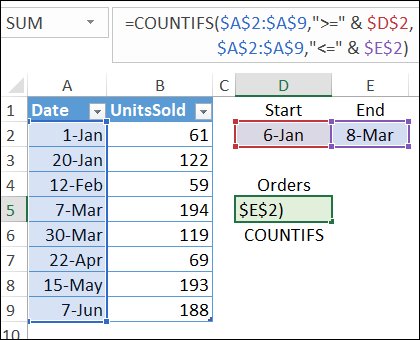
Problem: You have a list of transactions and want to count how many occurred between two specific dates.
Example:
| Date | Amount |
|---|---|
| 01-01-2026 | 500 |
| 05-01-2026 | 1200 |
| 20-01-2026 | 800 |
Formula:
=COUNTIFS(A:A, ">=01-01-2026", A:A, "<=15-01-2026")
This counts all entries between the two dates. Using COUNTIFS avoids helper columns and manual filtering.
2. Counting Based on Date and Value Together
Problem: Count how many transactions happened in January and were above a certain amount.
Formula:
=COUNTIFS(A:A, ">=01-01-2026", A:A, "<=31-01-2026", B:B, ">1000")
This is far more reliable than filtering and manually counting rows.
3. Summing Values Based on Conditions (SUMIFS)
Problem: Calculate total sales for a specific month.
=SUMIFS(B:B, A:A, ">=01-02-2026", A:A, "<=28-02-2026")
SUMIFS is safer and cleaner than SUM + IF combinations.
4. Fixing Date Problems That Break Formulas
Dates are one of the most common Excel issues. A date that looks correct may actually be text.
Quick test:
- If dates align left → likely text
- If dates align right → real dates
Fix:
=DATEVALUE(A1)
This converts text dates into real Excel dates.
5. Conditional Formatting That Highlights Problems Automatically
Instead of scanning numbers manually, let Excel warn you.
Example: Highlight overdue dates.
=A1 < TODAY()
Apply this rule using conditional formatting to instantly see delays.
6. Avoiding COUNTIF Mistakes with Dates
Many COUNTIF formulas fail because dates are compared incorrectly.
Wrong approach:
=COUNTIF(A:A, "01-01-2026")
Correct approach:
=COUNTIF(A:A, DATE(2026,1,1))
Always use DATE() when precision matters.
7. Using Helper Columns to Make Logic Understandable
Instead of complex nested formulas, break logic into steps.
Example helper column:
=IF(B2>1000, "High Value", "Normal")
Readable sheets survive longer than clever ones.
Common Excel Mistakes Professionals Avoid
- Using COUNT instead of COUNTIF/COUNTIFS
- Mixing text and date formats
- Hardcoding values inside formulas
- Overusing nested IF statements
Final Thoughts
Excel becomes powerful when formulas reflect real thinking — not when they are technically impressive.
If your formulas are readable, reliable, and flexible, your spreadsheets will actually support decisions instead of confusing them.
What's Your Reaction?