Excel Date Logic Explained Visually: TODAY, EOMONTH & NETWORKDAYS
A visual and practical guide to Excel date logic. Learn how TODAY, EOMONTH, and NETWORKDAYS actually work using real examples, screenshots, and explanations that prevent common mistakes.
Excel Date Logic Explained Visually: TODAY, EOMONTH & NETWORKDAYS
Excel date formulas confuse people not because they are complex, but because their behavior is rarely explained visually. Once you see what Excel is doing, the logic becomes obvious.
This guide explains Excel date logic using real examples, clear screenshots, and practical scenarios — not abstract theory.
How Excel Actually Sees Dates
Before using date formulas, it is critical to understand one thing: Excel stores dates as numbers. Formatting only changes how you see them.
In the image above:
- The same date is shown as a number and as a formatted date
- Excel calculations work on the number, not the text
Using TODAY(): Making Sheets Update Themselves
The TODAY() function returns the current date automatically. It updates every time the sheet recalculates.
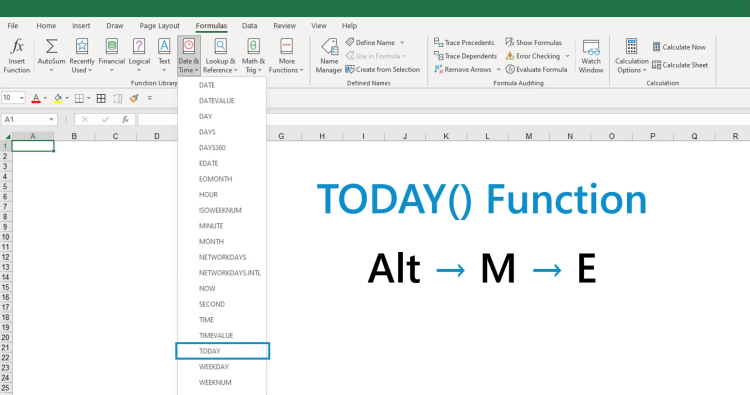
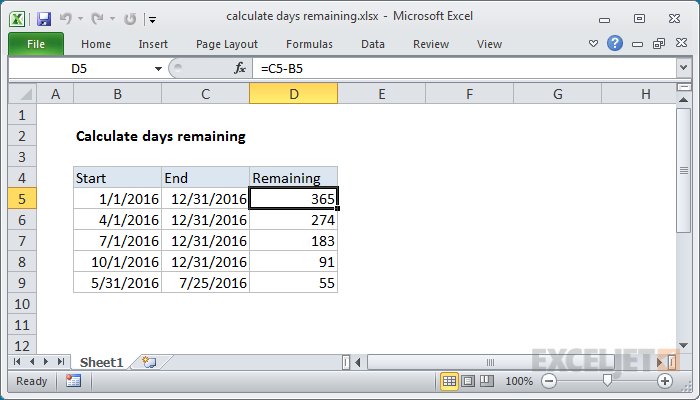
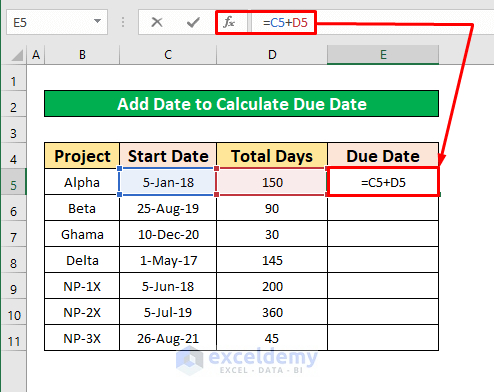 In the example above:
- Column A contains deadlines
- Column B calculates remaining days using TODAY()
=A2 - TODAY()
This allows the sheet to stay relevant without manual updates.
EOMONTH(): Understanding Month Boundaries Visually
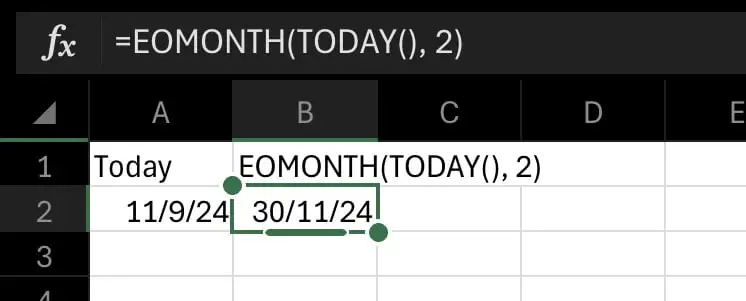
Month-end calculations are where many Excel sheets break. Hardcoding dates causes errors when months change.
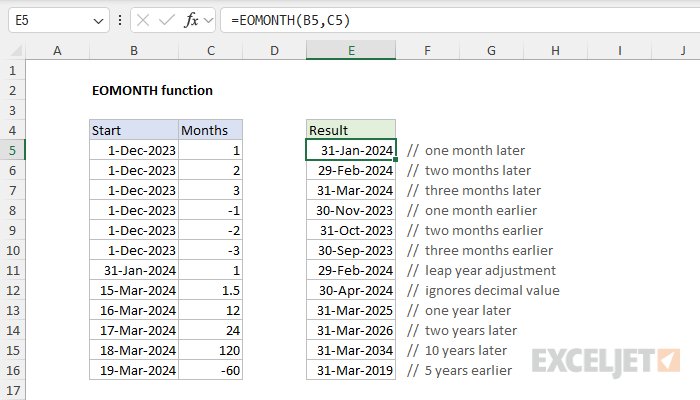
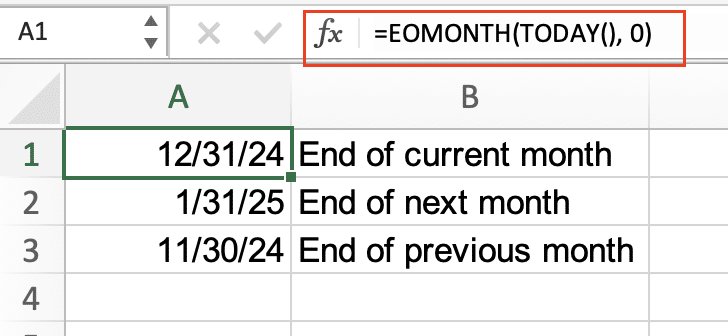 The image demonstrates:
- EOMONTH(TODAY(), 0) → current month end
- EOMONTH(TODAY(), -1) → previous month end
- EOMONTH(TODAY(), 1) → next month end
=EOMONTH(TODAY(), 0)
Professionals use this instead of typing dates manually.
NETWORKDAYS(): Seeing Working Days Correctly
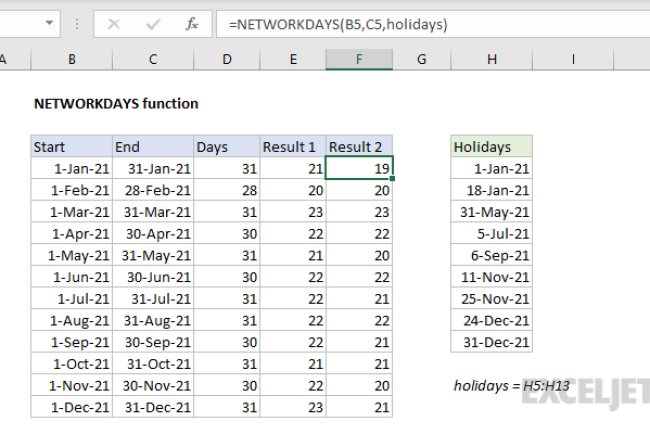
Simple date subtraction assumes every day is a working day. NETWORKDAYS fixes this by excluding weekends automatically.
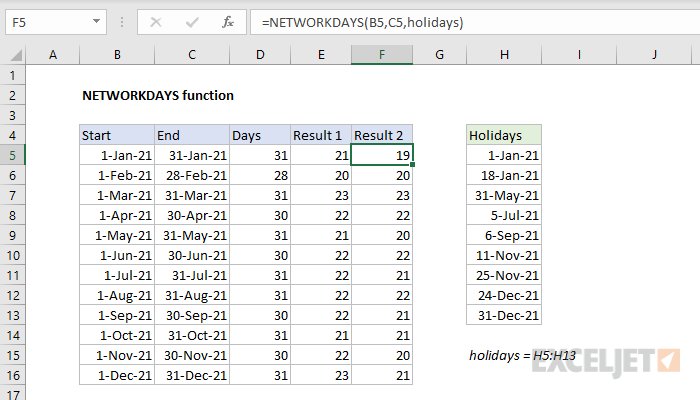
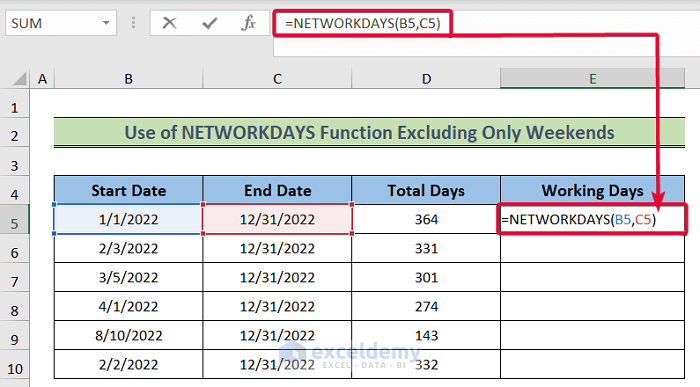
=NETWORKDAYS(A2, B2)
In the example:
- Start date and end date are shown
- Only working days are counted
- Results match real-world expectations
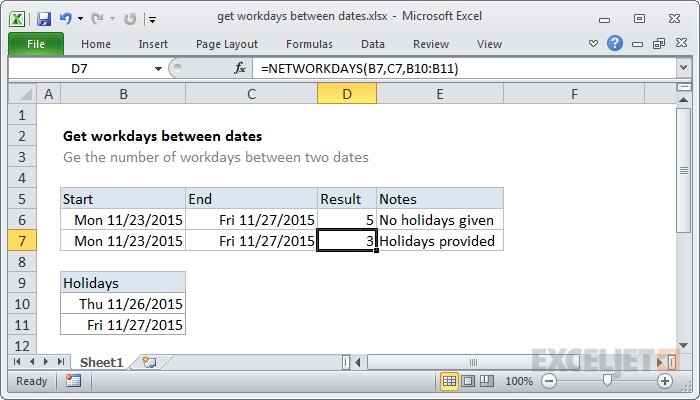
Including Holidays in NETWORKDAYS
Real projects include holidays. NETWORKDAYS allows you to exclude them using a holiday list.
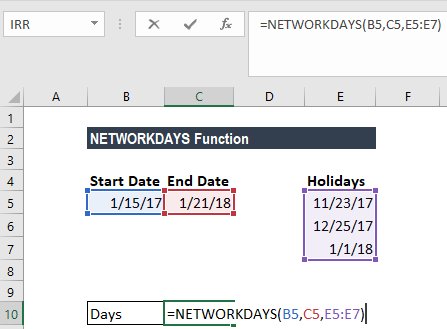
=NETWORKDAYS(A2, B2, D2:D10)
This makes timelines realistic and defensible.
Common Visual Red Flags to Watch For
- Dates aligned left (often text)
- Formulas returning unexpected negatives
- Month-end reports missing data
- Deadlines that ignore weekends
Final Thoughts
Excel date logic becomes simple once you see what is happening. Visual understanding prevents silent errors that damage reports and decision-making.
If your spreadsheets make time behave correctly, everything else becomes easier.
What's Your Reaction?