Excel Date Logic Deep-Dive: TODAY, EOMONTH, NETWORKDAYS (With Real Examples)
A deep dive into Excel date logic using TODAY, EOMONTH, and NETWORKDAYS. Learn how professionals calculate deadlines, working days, month boundaries, and time-based logic correctly.
Excel Date Logic Deep-Dive: TODAY, EOMONTH, NETWORKDAYS
Dates are one of the most powerful — and most misunderstood — parts of Excel. Many errors in reports, trackers, and dashboards come from incorrect date logic, not bad formulas.
This guide explains how Excel actually thinks about dates and how professionals use TODAY, EOMONTH, and NETWORKDAYS to build reliable, future-proof sheets.
How Excel Really Stores Dates (Important)
Excel does not store dates as text. Each date is a number representing days since a fixed starting point.
This is why date logic works — and why formatting mistakes break formulas.
- Dates aligned right → real dates
- Dates aligned left → likely text
1. TODAY(): The Foundation of Dynamic Sheets
The TODAY() function returns the current date automatically. It updates every time the file recalculates.
Example: Days remaining until a deadline.
=DeadlineDate - TODAY()
This is how professionals build trackers that stay relevant without manual updates.
Common mistake: Using fixed dates instead of TODAY(), which makes sheets outdated quickly.
2. EOMONTH(): Mastering Month Boundaries
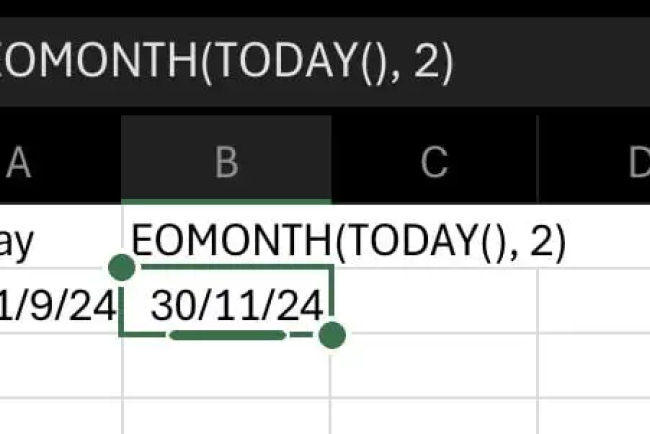
EOMONTH is used to find the last day of a month — past or future. It is essential for monthly reports, billing cycles, and summaries.
Syntax:
=EOMONTH(start_date, months)
Examples:
=EOMONTH(TODAY(), 0)   // Last day of current month
=EOMONTH(TODAY(), -1)  // Last day of previous month
=EOMONTH(TODAY(), 1)   // Last day of next month
Professionals use EOMONTH instead of hardcoding dates to avoid month-length issues.
3. NETWORKDAYS(): Counting Only Working Days
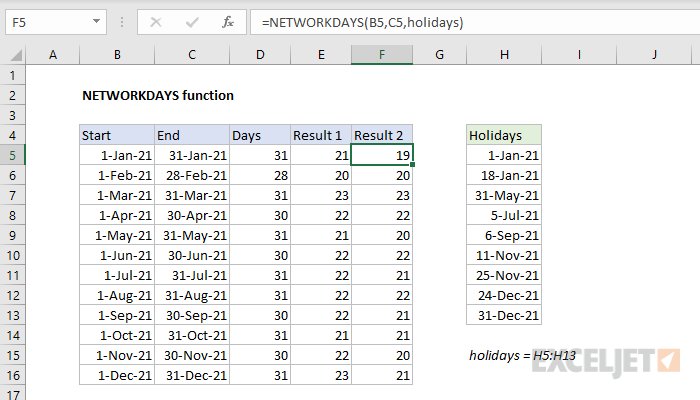
NETWORKDAYS calculates the number of working days between two dates, automatically excluding weekends.
Syntax:
=NETWORKDAYS(start_date, end_date)
Example: Project duration excluding weekends.
=NETWORKDAYS(A2, B2)
This is essential for realistic timelines and delivery planning.
4. NETWORKDAYS with Holidays (Professional Use)
Most real projects include holidays. NETWORKDAYS allows you to exclude them using a holiday list.
=NETWORKDAYS(A2, B2, H2:H10)
This makes deadline calculations accurate and defensible.
5. Combining TODAY + NETWORKDAYS
A common real-world need: “How many working days are left from today?”
=NETWORKDAYS(TODAY(), DeadlineDate)
This single formula replaces manual counting and constant updates.
6. Flagging Overdue Tasks Automatically
Using date logic with conditional formatting allows Excel to act as an early warning system.
Rule formula:
=AND(A2 < TODAY(), B2 <> "Completed")
This highlights overdue tasks without manual review.
7. Common Date Logic Mistakes Professionals Avoid
- Comparing text dates instead of real dates
- Hardcoding month-end dates
- Ignoring weekends in timelines
- Mixing local date formats inconsistently
Final Thoughts
Excel date logic is not about memorizing formulas — it is about understanding how time behaves in real work.
Once you master TODAY, EOMONTH, and NETWORKDAYS, your sheets stop breaking, deadlines become realistic, and reports stay accurate without constant fixing.
What's Your Reaction?